3D Print Barcode Generator
Generate Code 128, EAN-13, or UPC-A as a raised barcode STL.
One barcode, three files
Generate your barcode to see the exact plate size and download its STL, SVG, and PNG references.
Checks cover encoded content, image decoding, and the saved STL. Physical print quality still needs a scan test.
Which barcode should you 3D print?
Start from what the receiving scanner or system expects. A similar-looking pattern is not a replacement for the required format.
| Format | Use when | Input and constraints | STL availability |
|---|---|---|---|
| Code 128 | Short asset IDs, bin labels, and internal tracking | 1–40 printable ASCII characters in this tool. Spaces are preserved. | Generate here |
| EAN-13 | An existing EAN product number | 12 digits to calculate the check digit, or 13 digits with a valid check digit. | Generate here |
| UPC-A | An existing UPC product number | 11 digits to calculate the check digit, or 12 digits with a valid check digit. Leading zeros remain intact. | Generate here |
| Code 39 | An existing system that specifically requires Code 39 | Use the format required by your scanner and system; it cannot be substituted with Code 128. | Not supported here |
| ITF-14 | GTIN identification of cases and outer packaging | A 14-digit GTIN symbol for distribution tasks, rather than retail point-of-sale. | Not supported here |
EAN and UPC need the correct product number, not a random number that happens to pass a check digit. ITF-14 is a separate case-label format; see the GS1 US ITF-14 explanation. QR is available in our separate QR to STL generator.
Print settings and scanability
These are the generator’s current defaults and a preparation checklist. They are not results from a physical printer test. Nozzle diameter alone does not define line width: inspect your actual slicer paths and keep every bar, space, and quiet zone intact.
- Narrow bar width
- 0.8 mm default
- A starting model setting, not a measured print minimum. Check your actual extrusion width and each narrow bar and space in the slicer; enlarge the code if they disappear.
- Quiet zones
- 12 modules on each side
- At the default width, each side has 9.6 mm of blank space. Keep it light and clear of frames, text, holes, and paint.
- Bar height
- 25 mm default
- The base adds 4 mm of blank space above and below the bars. Keep enough bar height for your scanner to cross the complete pattern.
- Base and relief
- 2 mm base + 1.2 mm bars
- Check the layer where raised bars begin. Print the base light and the bars dark; STL carries geometry rather than filament colors.
- Layer height
- Use your printer profile
- Smaller layers improve vertical detail; they do not repair missing bars in the XY plane. Inspect the first raised layer and the top surface.
- Print orientation
- Flat backing plate on the bed
- The raised bars face upward. Check the whole barcode in the layer preview and preserve the base dimensions when importing in millimeters.
- 01
Check the sliced bars
Import in millimeters, preserve both dimensions, and inspect the narrow bars and spaces layer by layer. Regenerate a larger model if the slicer loses detail.
- 02
Set the light-to-dark change
Keep the backing light and change to dark filament where the bars start. Confirm the exact change layer in your slicer and use a method supported by your printer.
- 03
Scan one finished sample
Use the intended scanner, mounting angle, distance, and lighting. Verify the exact decoded string and record failed attempts before making more copies.
For slicer mechanics, see Prusa’s layer-height guidance and color-change instructions. Exact layer numbers depend on your profile and base thickness.
A sample file for your first print test
The Code 128 sample encodes PRIVQR-001, with a 135.2 × 33 × 3.2 mm plate. Its digital image and saved mesh pass decoding and geometry checks. Physical scan measurements have not been published.
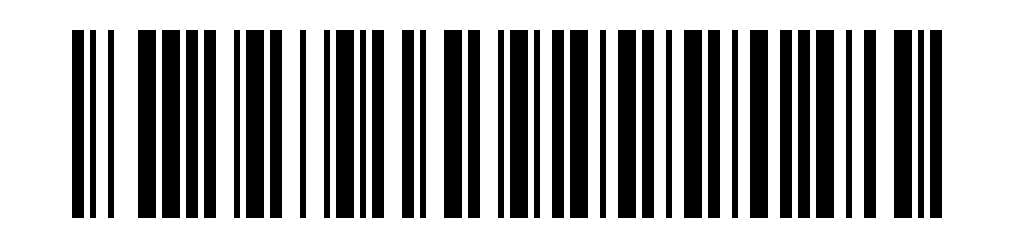
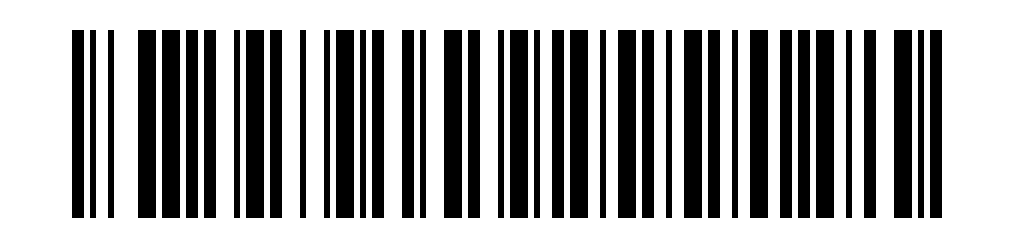
Record printer, nozzle, extrusion width, layer height, filament, change layer, scanner, lighting, distance, and the exact decoded value. Repeat each condition and keep failures in the record.
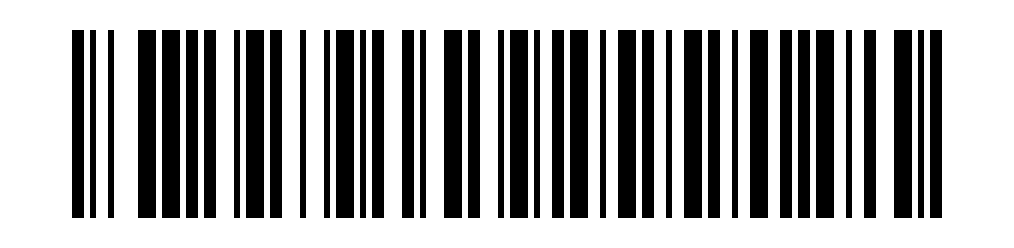
PRIVQR-001
Barcode or QR code: which should you print?
QR is also a barcode, but it uses a square two-dimensional pattern. This page generates linear bars. Choose for your data and reader, rather than treating the two shapes as interchangeable.
Choose linear bars for an existing ID workflow
Use short asset identifiers or correctly assigned product numbers when your scanner and software expect Code 128, EAN-13, or UPC-A. Longer Code 128 data makes a wider part.
Open the direct barcode converterChoose QR for URLs, Wi-Fi, or longer text
Use the QR generator for a square code that opens a link or carries richer text. Preserve its quiet border and check the intended phone or camera on the finished print.
Generate a QR code STLRead the QR printing workflowWhy a printed barcode fails to scan
The screen reference scans, but the print does not
Compare the physical bars with the SVG. Check missing narrow lines, reflections, scanner settings, and the decoded value.
Thin bars disappear or spaces merge
Inspect extrusion paths, not just the solid model. Increase narrow bar width and regenerate; do not stretch width independently of height in CAD.
The code has little contrast
Use a light base with dark bars. Same-color relief and shadows are unreliable substitutes for optical contrast.
The edge bars cannot be read
Restore the quiet zones. Keep text, mounting features, background graphics, and dark paint out of the clear side margins.
The scan returns an unexpected product number
Compare the complete decoded string, including leading zeros and the check digit. Confirm the scanner is configured for your chosen symbology.
3D printed barcode questions
Can I 3D print a one-dimensional barcode?
Yes. Generate Code 128, EAN-13, or UPC-A as raised bars on a backing plate, download the STL, and slice it in millimeters. Preserve the quiet zones and use light and dark filament for contrast. Scan one finished sample with your intended reader before printing more.
What is the smallest printable barcode?
There is no universal minimum. The symbol, data length, extrusion paths, surface finish, lighting, and scanner all matter. This tool starts with 0.8 mm narrow bars, but that is an unmeasured starting setting. Increase bar width if narrow bars or spaces are missing in the slicer, then test the actual print.
Can I print a barcode without a label printer?
You can download the SVG or PNG reference and use an ordinary paper printer for a flat label. To make the raised STL part, you need access to a 3D printer or a printing service. Generating the file does not manufacture the physical label.
Is this a barcode to STL converter?
It converts the original text or number into a new barcode and then STL geometry. It does not trace an uploaded barcode image. Use the direct barcode-to-STL page when you only need files, or follow the print steps on this page for physical preparation.
Does the generator support Code 39 or ITF-14?
The current STL generator supports Code 128, EAN-13, and UPC-A. Code 39 and ITF-14 are explained for comparison but are not output options. For a URL, Wi-Fi details, or longer text, use the separate QR code to STL generator.
Can I use these EAN or UPC files as retail packaging labels?
Only use a product number already assigned to the intended product. This tool calculates or checks the check digit; it does not assign a GTIN. Its raised STL is a prototype and omits human-readable digits. Generation and digital decoding do not certify retail label size, print quality, or GS1 compliance.
Have these barcode settings been physically tested?
The generator checks the reference image, the saved STL mesh, and ideal two-color scanlines through the saved file. PrivQR has not published physical print measurements for this workflow. Print the downloadable sample and record your printer, material, settings, and exact scan results before relying on a batch.